Watch it, then try it on your own job. AnnE builds yours from your words, tried on sample data before anything real.

Demo

One request. A working job across five apps.

Every new Shopify order is checked against its Stripe payment, logged as a closed-won deal in Salesforce, added to the right Mailchimp list, and announced to the accounts team in Slack. Watch AnnE build it from one paragraph: she lays out the 12 steps, sets how the job starts, asks only what she can't know, and tries it on the store's orders before anything is written.

The jobExactly as it was typed.

Fetch all new Shopify orders, verify the payment status in Stripe, look up or create the corresponding account and contact in Salesforce to log an closed-won opportunity, conditionally add the customer to a Mailchimp re-engagement campaign if they spent under $150 or a VIP list if they spent more, and instantly alert the accounts team in Slack with the Salesforce record links and invoice details

  • ShopifyShopify
  • StripeStripe
  • SalesforceSalesforce
  • MailchimpMailchimp
  • SlackSlack

What AnnE builds from it

The 12 steps, in 8 stages.

  1. shopify

    Checks for new orders every 5 minutes

    The job starts on a schedule and reads the Shopify orders that are new since the last run.

  2. shopifystripe

    Matches each order to its payment

    Orders from Shopify and payments from Stripe are joined, so every order carries its payment status.

  3. Keeps only the paid orders

    A Keep only step lets through the orders whose payment Stripe confirms; the rest go no further.

  4. Prepares the fields

    Each order is shaped for the systems it goes to: the customer, the amount and the invoice details.

  5. Hands every order to each target

    One Copy step sends every order to all the writes at once, so no system waits for another.

  6. salesforce

    Logs the sale in Salesforce

    The account and the contact are looked up or created, and a closed-won opportunity is logged.

  7. mailchimp

    Puts the buyer on the right list

    Under $150, the customer joins the Mailchimp re-engagement campaign; $150 or more, the VIP list.

  8. slack

    Tells the accounts team

    Each order is posted to Slack with its Salesforce record links and invoice details.

Preview: the real data, before anything runs

Preview is a trial run of the whole job. Each step reads the real records of the system it is connected to, or its sample data where it is set to use samples, and keeps what it made for you to look over. Steps that write or send sit it out unless you turn them on.

Only what is ready runs

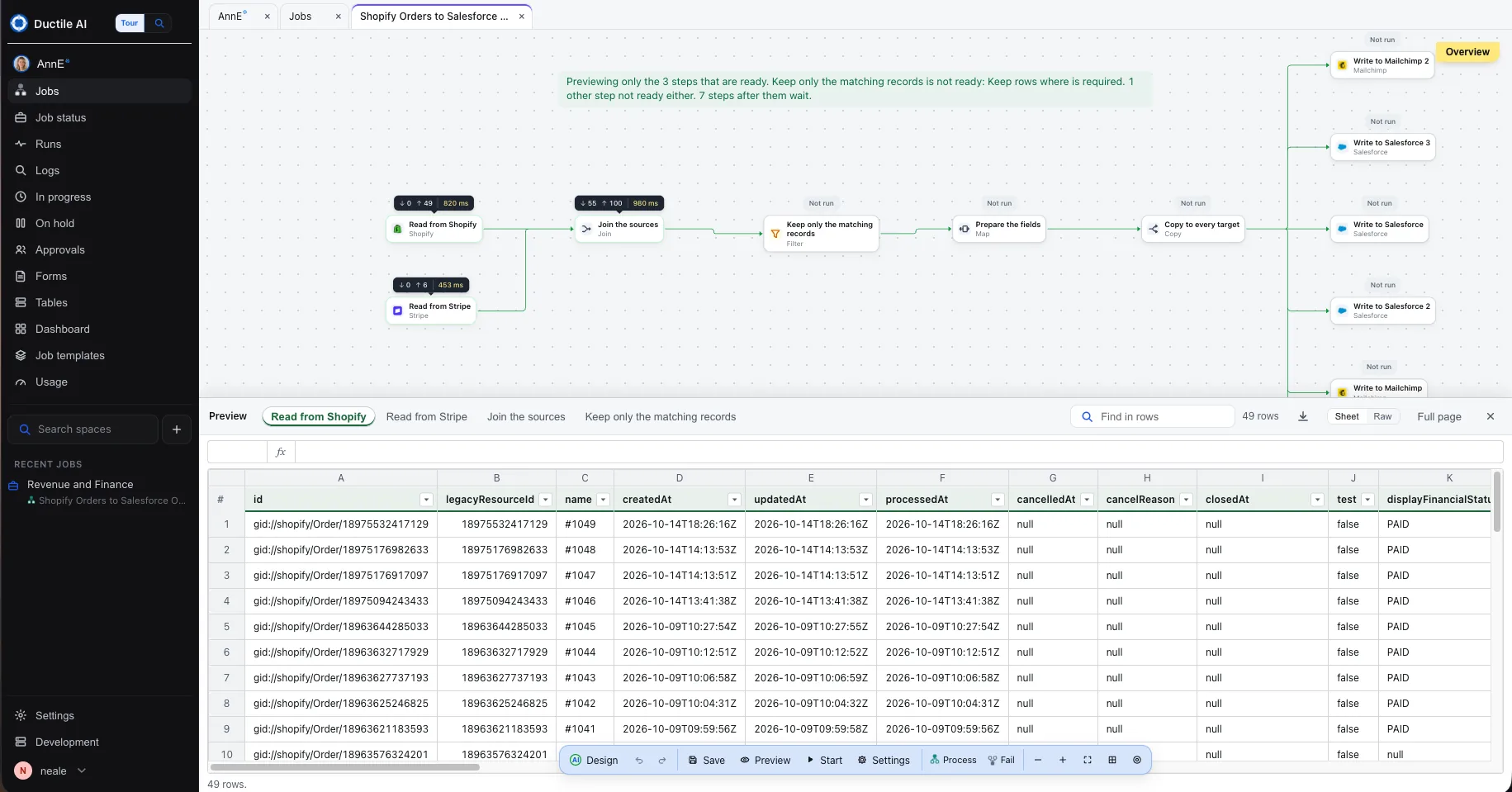
A step still missing a setting is marked Not run, and the note above the canvas says which one and why; the steps after it wait. Here the Shopify read, the Stripe read and the join ran.

Every step shows its count

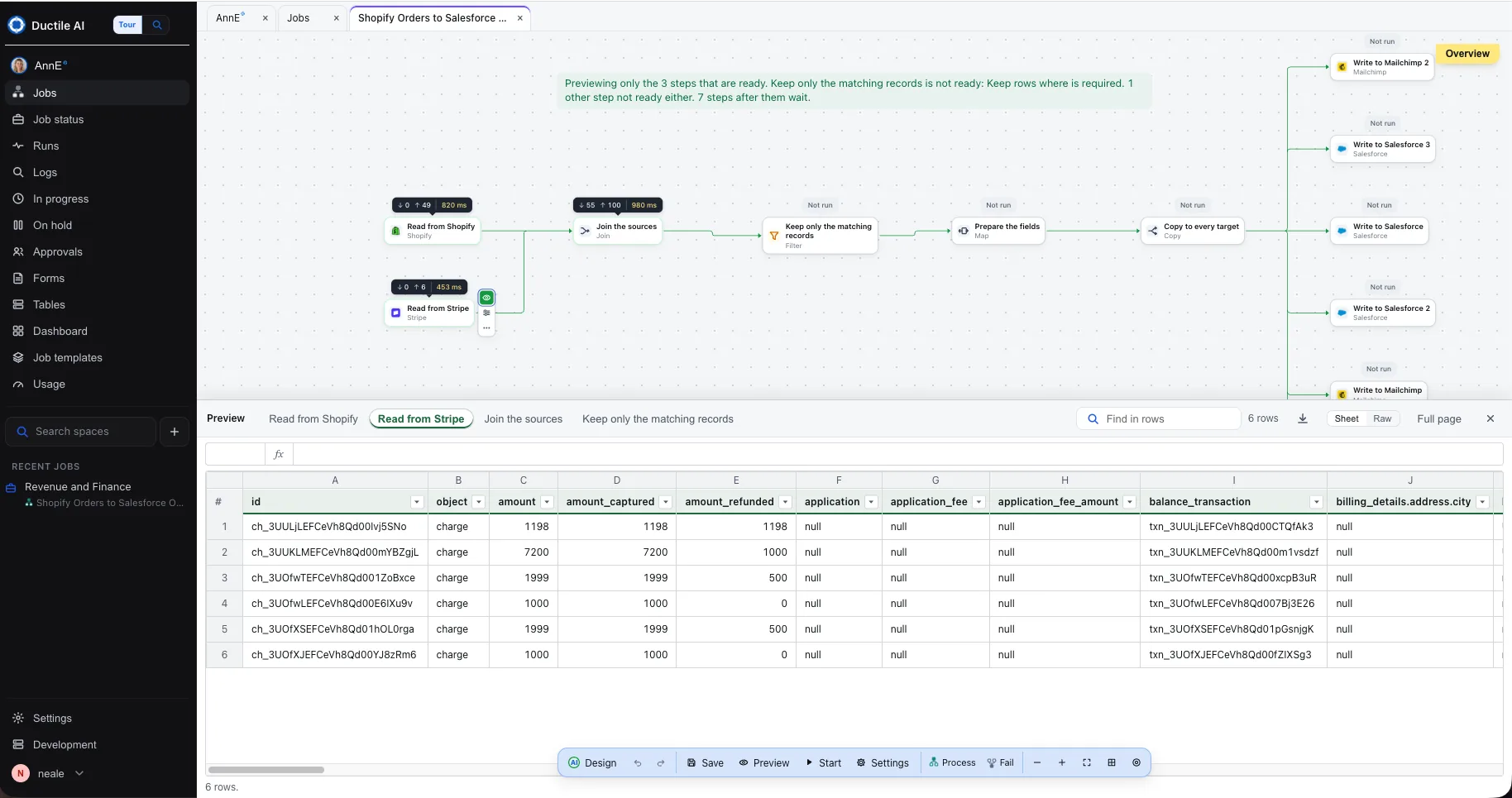
Rows in, rows out and the time each step took sit above it: 49 orders from Shopify in 820 ms, 6 charges from Stripe in 453 ms.

Open any step's rows

The panel under the canvas has a tab for each step that ran. Its rows read like a spreadsheet: search them, switch to the raw records, download them, or open the full page.

Every run is kept

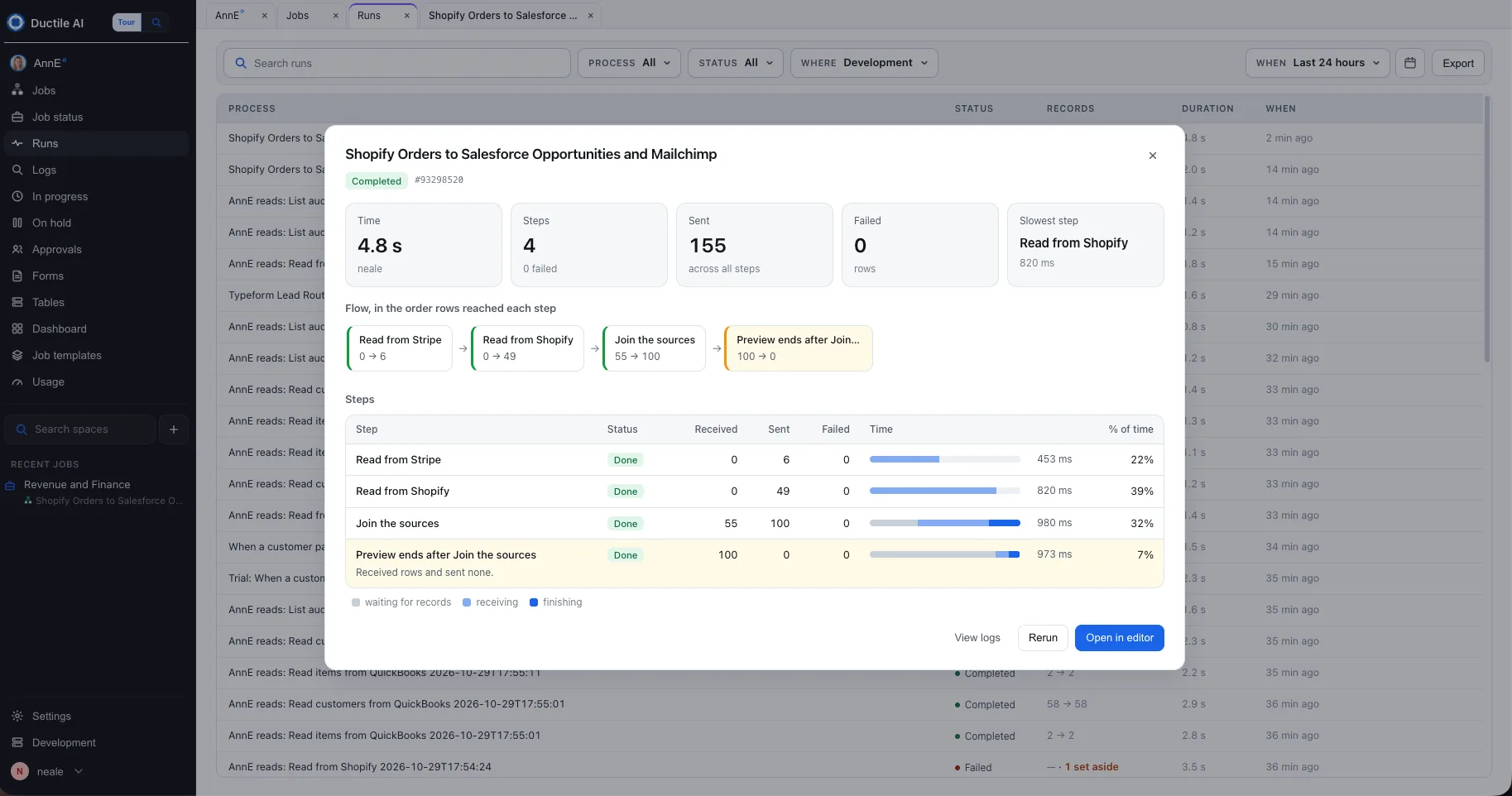
Previews and live runs alike are in Runs: the time, the rows sent across all steps, the failures, the slowest step and each step's numbers, with View logs, Rerun and Open in editor.

The job's preview on the Ductile AI canvas with the Read from Shopify tab open: 49 Shopify orders as rows, with id, name, created, updated, processed and payment status columns
Read from Shopify: the 49 orders the preview read, column by column.
The same preview with the Read from Stripe tab open: 6 Stripe charges with amount, amount captured, amount refunded and balance transaction columns
Read from Stripe: the 6 charges, with what was captured and refunded.
The preview's run in Runs: completed in 4.8 seconds, 4 steps, 155 rows sent, 0 failed, slowest step Read from Shopify at 820 ms, the flow in the order rows reached each step, and a table of each step's received, sent, failed and time
The preview in Runs: 4.8 seconds, 155 rows sent, nothing failed, and each step's numbers.

More of what a process can hold

Shown in the job from the recording and in a larger one AnnE built: a month-end reconciliation across Shopify, Stripe, Square, Mailchimp, Google Sheets, Snowflake, QuickBooks, Slack and Gmail. Every part is a step you can open, read and change on the canvas.

Build steps

One request, one process on the canvas

Each part of the request becomes a step: a read from a system, a join, a filter, an AI step, a total, a write, an approval. The steps are wired in the order the work happens, and every one opens on its own settings.
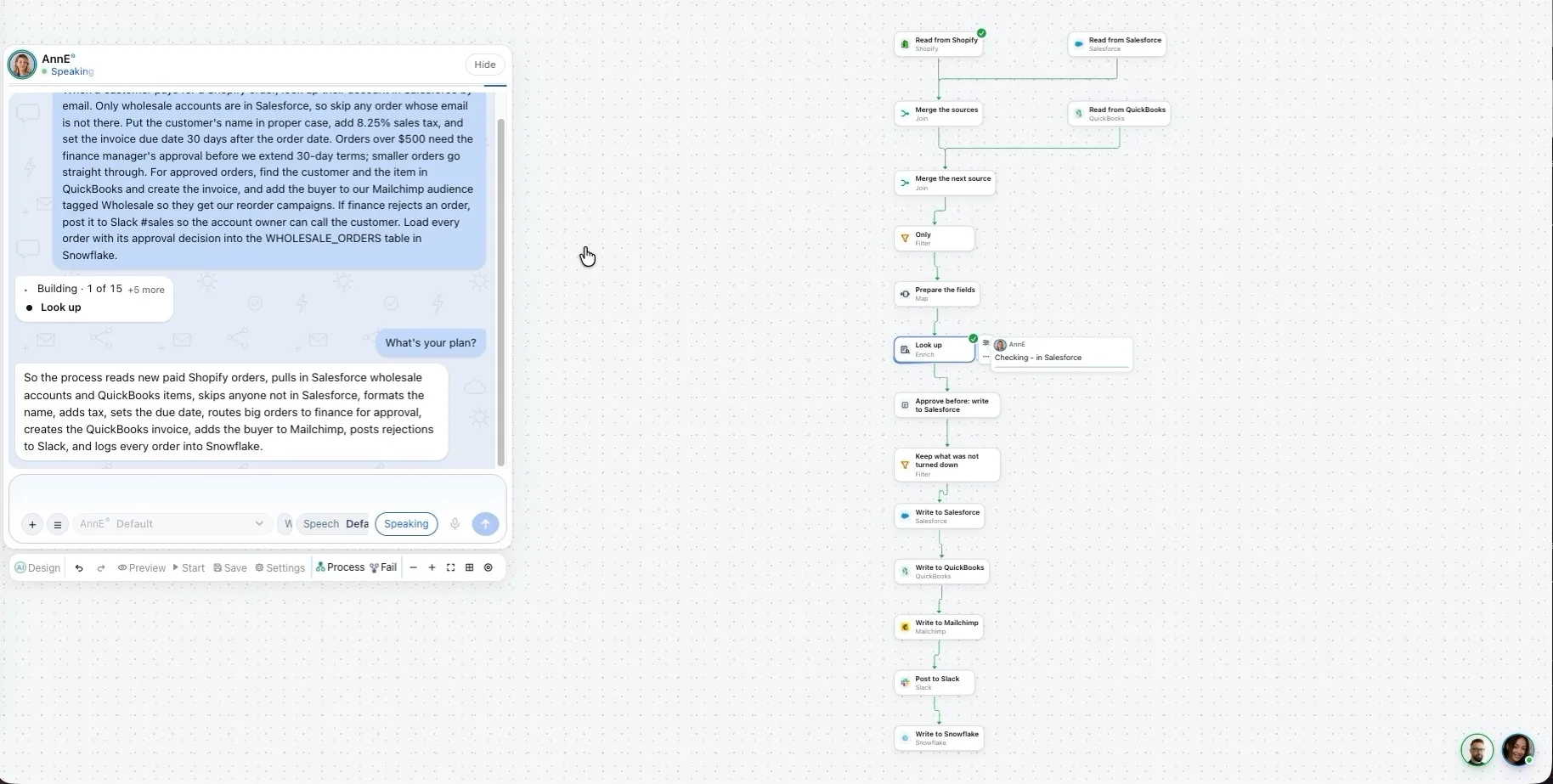
AnnE's plan beside the wholesale-order job on the Ductile AI canvas: reads from Shopify, Salesforce and QuickBooks, two joins, a filter, a look-up, an approval and writes to Salesforce, QuickBooks, Mailchimp, Slack and Snowflake
The wholesale-order job from the recording, with AnnE's plan beside it.

Formulas

Rules and totals you can read

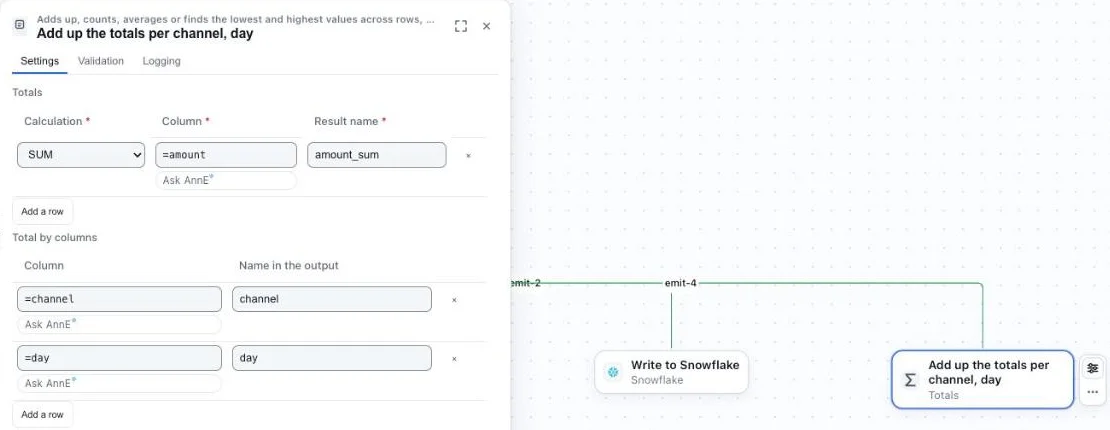
Rules, totals and calculated fields are Excel-style formulas over the columns that reach the step. AnnE writes them from your request, and the platform checks each one against the real columns before the process runs.

The totals step: SUM of amount as amount_sum, totalled by channel and by day, each column a formula
Totals by channel and by day: each column is a formula.

Mapping

Columns matched across systems

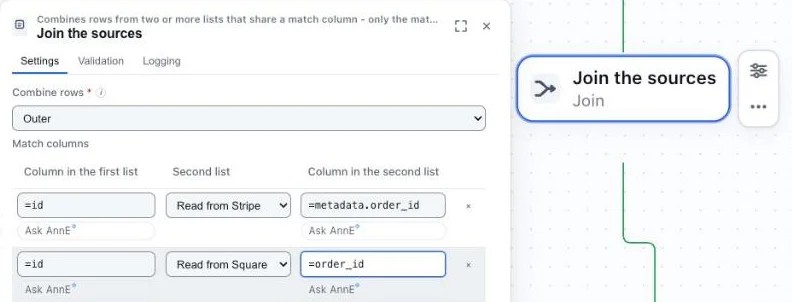
Shopify, Stripe and Square name the same thing differently. The join matches each source on its own order column, and a Map step shapes each row for the system it is written to.

The join step matching the Shopify order id to Stripe metadata.order_id and Square order_id
Each source matched on its own order column.

Filtering

Only the rows that belong

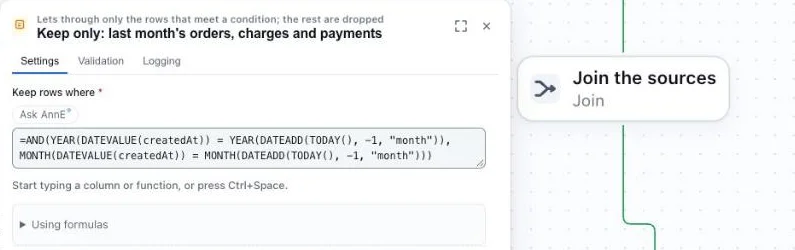
A Keep only step lets through the rows its formula allows, here the transactions created last month. The rest go no further, and the run reports how many.

The Keep only step with a formula that keeps rows created in the previous calendar month
Keep only the rows created last month.

Routing

Every row where it should go

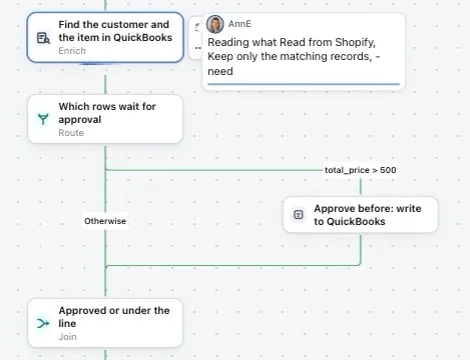
A Route step sends each row down the path whose condition it meets: orders over $500 to the finance approval, everything else straight on. A Copy step sends the same rows to several targets at once.

A Route step sending orders with total_price over 500 to an approval before QuickBooks, and every other order straight on
Orders over $500 wait for finance; the rest go straight through.

Human approval

Finance decides before anything is posted

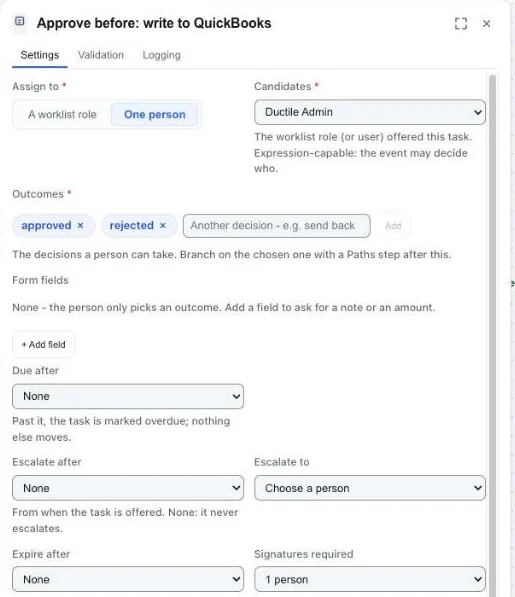
The approval step pauses the run before QuickBooks and notifies the approvers by email or Slack. They decide signed in, in the Worklist; the decision is kept with the rows, and only an approval is posted.

The approval step: assigned person, approved and rejected outcomes, due, escalation and expiry settings
The approval before QuickBooks: who decides, the outcomes, and when it escalates.

Preview

Both outcomes, before the first live run

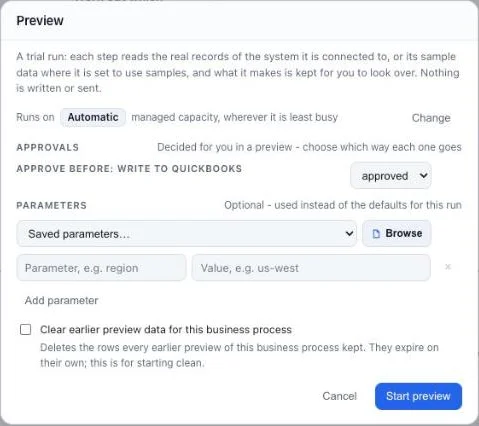
Preview plays the whole process on sample or connected data and shows the rows each step produced. You choose how the approval goes; steps that would write to QuickBooks, Slack or email sit the preview out unless you turn them on.

The Preview dialog with the approval before QuickBooks decided as approved for the trial run
Choose how the approval goes before a preview runs.

Schedules and webhooks

Started on time, or on an event

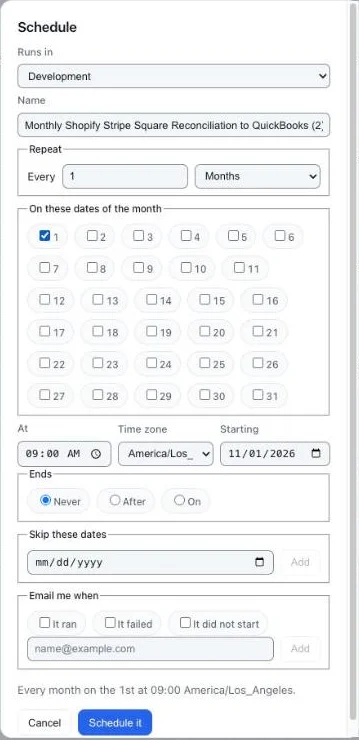
The order process starts on each paid Shopify order, and the reconciliation on the first of every month. A process can also start when its webhook is called, when a form is submitted or when someone starts it by hand.

The schedule window set to every month on the 1st at 09:00
Every month on the 1st at 09:00.

Tables

Your own data, without a database

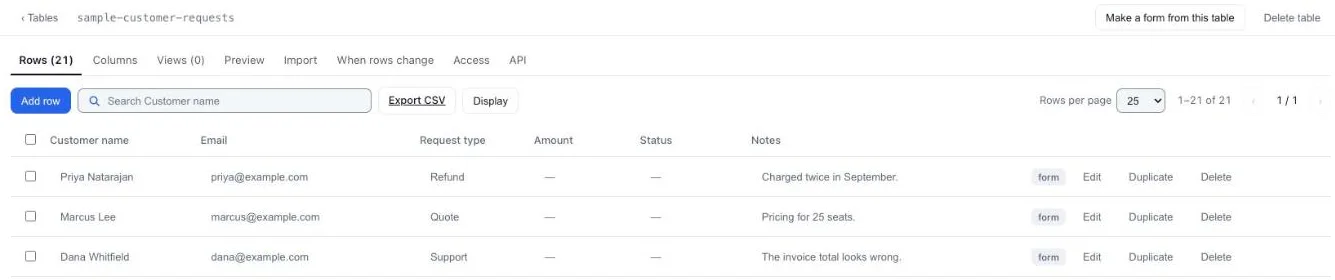
Keep reference data, results or a running ledger in tables inside Ductile AI, read and written by any process.

A table in Ductile AI with customer requests, its columns, views, import, change triggers, access and API tabs
A table with its rows, columns, views and API.

Forms

A form that starts a process

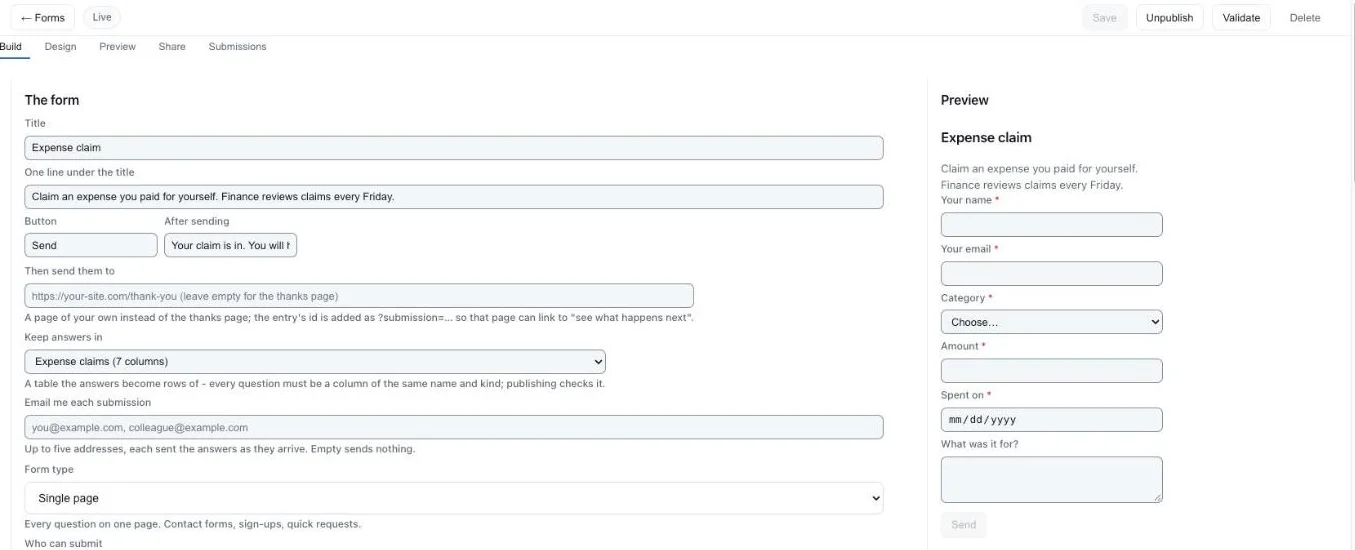
Build a form and share its link; every submission starts a process with the answers as its first row.

The form builder for an expense claim with a live preview of the form
An expense claim form that starts a process.

How AnnE works with you

Lays out the job first

From one paragraph she puts every step on the canvas, wired in the order the work happens, before she fills in any of them.

Sets how it starts

Asked for new orders, she sets the job to check every 5 minutes for anything new, and says so beside the step.

Asks only what she cannot know

Which Salesforce connection to write with, and which orders go to Salesforce and to Slack when β€œevery order” names no rule. She offers to read a few Stripe records, read-only, to fill in the column names.

Previews before anything runs

A preview reads the connected records, skips the steps that write or send, and shows the rows each step produced, like a small spreadsheet.

Describe your own process

Say it or type it in plain language. AnnE builds it, previews it with you, and runs it the same way every time.

Get started